![Nav Support Center.svg]](https://help.foodnotify.com/hubfs/Support%20Center/Design/Nav%20Support%20Center.svg)
You do the counting in the FoodNotify app. You can create a stocktaking by storage locations or by commodity groups. In the browser, you prepare it and see all stocktakings.
Prepare the stocktaking
- Import all delivered orders: How do I import an order?
- Assign all products to a storage location and a commodity group: ERP Completion
- Check the Stocktaking Validity Report: What is the Stocktaking Validity Report?
- In each storage, set the order of the products to match how they are on the shelf: Set the order for the stocktaking
- You hide products that shouldn't be counted in the product with Show In Stocktaking.
Create a stocktaking
- For a full stocktaking, select all storage locations.
- If a product is in several storages, it appears in each of these lists.
- Important: Create the stocktaking on one device only. It is then automatically available to all users of the location.
Count, also with several people
- Each person counts one storage, in other words one list. Several people can count at the same time as long as each counts a different storage.
- The icon at the top shows the progress: an empty circle means counting hasn't started yet. A half-full circle means it is in progress. A full circle with a tick means the storage has been counted.
- Within a storage, green ticks show which products have already been counted.
Counting units
In the first stocktaking, the app shows you all units of a product: your supplier's units and your own counting units, for example pieces or GN containers. From the second stocktaking on, it first shows you the units you used last. You can add more units at any time.
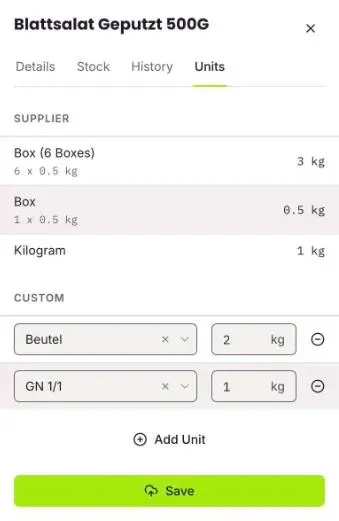
You can combine units, for example box, pieces and GN container. One click takes you to the next product. You create your own counting units in the browser in the product: Units for stocktaking
Count offline
- You can also count the stocktaking without internet.
- For the first synchronisation, you need a stable connection. You recognise it by the green tick at the top right.
- After that, the app switches between online and offline by itself and keeps synchronising what you have counted. You can switch on flight mode, but you don't have to.
More: How offline mode works in the mobile app
Finish, review and sign the count
- When a storage has been counted, you finish its count. This doesn't finish the stocktaking itself yet.
- When all storages have been counted, the responsible person starts the review.
- They check the counted quantities and values and correct them if needed.
- If everything is right, they sign the stocktaking.
After signing, you can't change anything any more, and FoodNotify overwrites all stock levels in Inventory with the counted quantities. In the app's stocktaking overview, swipe a finished stocktaking to the left to forward the report, for example by email or WhatsApp.
View stocktakings in the browser
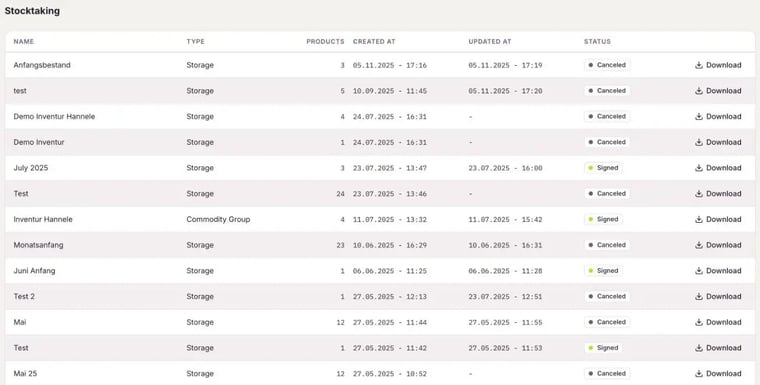
Under Inventory › Stocktaking, you see all stocktakings with type (storage or commodity group), number of products, date and status: Counting, In review, Signed or Canceled. With Download, you save a stocktaking as a file.
Who can do what?
In the roles, you define who may open and edit, create and confirm, or stop and delete stocktakings: Users and permissions