![Nav Support Center.svg]](https://help.foodnotify.com/hubfs/Support%20Center/Design/Nav%20Support%20Center.svg)
You count your stocktaking in the FoodNotify app. How to prepare it in the browser and what happens after signing is explained here: How do I do a stocktaking?
The stocktaking overview
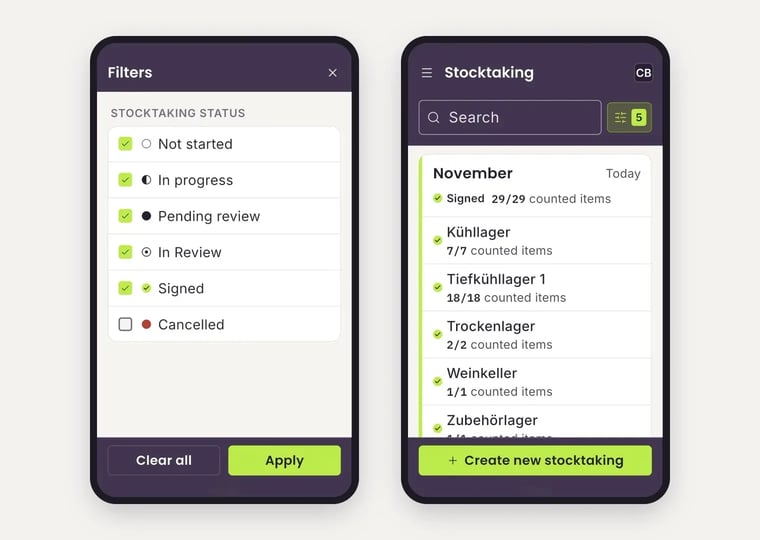
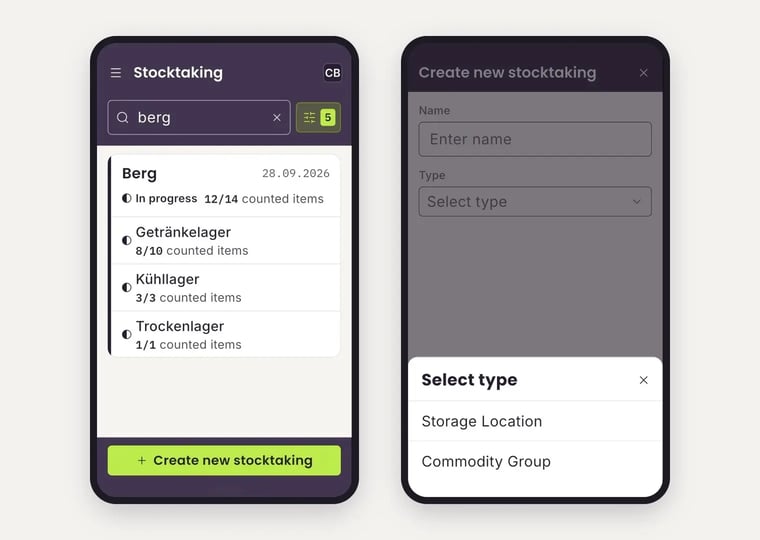
Open Stocktaking in the menu. You see the stocktakings of the selected location with date, status and progress, for example 12/14 counted items. Below, you see the progress of each storage. Use the search to find a stocktaking by name and the filter icon to choose which statuses are shown.
Create a stocktaking
- Tap + Create new stocktaking.
- Enter a name, for example the month.
- Under Type, choose whether you count by Storage Location or by Commodity Group.
- Select the storage locations or commodity groups you want to count. Tap Select all for a full stocktaking.
- Tap Create. FoodNotify now prepares the stocktaking. This can take up to five minutes.
Important: Create the stocktaking on one device only. It is then automatically available to all users of the location.
Count
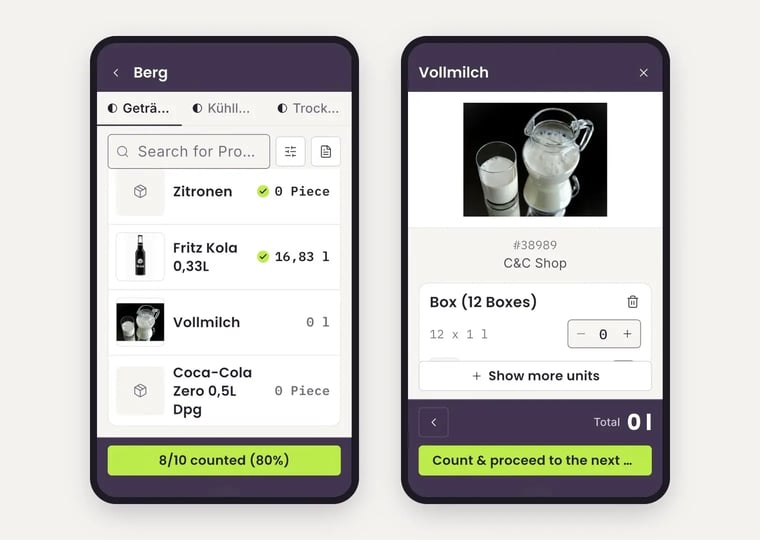
- Tap the stocktaking. At the top, you switch between the storages.
- Tap a product. You see its image, item number and supplier.
- Enter the quantity with − and + – in every unit you need, for example boxes and single bottles. Tap Show more units to add more units. The total is shown at the bottom.
- Tap the green button at the bottom to save the count. The app opens the next product.
A green check mark shows which products have already been counted. At the bottom, you see the progress of the storage, for example 8/10 counted (80%). Several people can count at the same time as long as each person counts a different storage.
Finish a storage
Once all products in a storage are counted, the app shows You have counted all products in this storage. Tap Sign count & Proceed. The storage is done, but the stocktaking itself is still open.
Review and sign
- Once all storages are counted, tap Start review. From now on, nobody can change the counts.
- Check the counted quantities and values. A colored percentage shows the deviation. Take a close look at products with a large deviation.
- If everything is right, tap Sign. If you still need to correct something, tap Reopen instead.
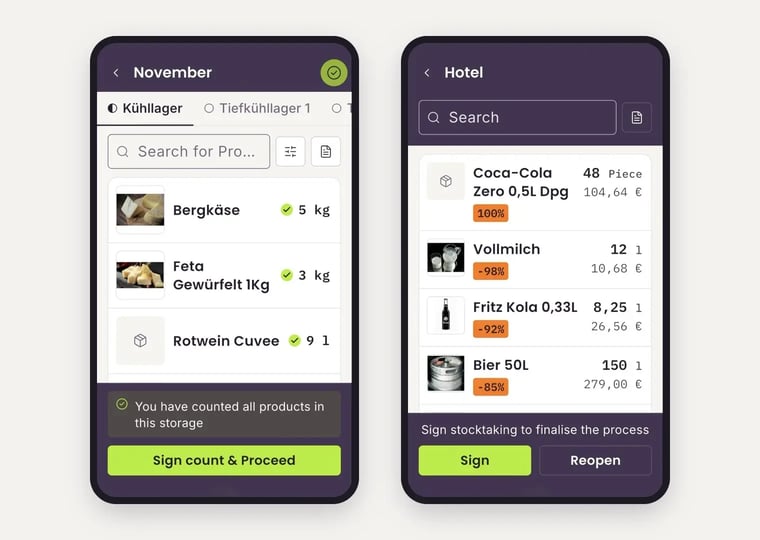
After signing, nothing can be changed. FoodNotify overwrites the stock levels in Inventory with the counted quantities.
Stocktaking status
- Not started – nothing has been counted yet.
- In progress – counting is under way.
- Pending review – all storages are counted and the review can start.
- In Review – the review is under way and the counts are locked.
- Signed – the stocktaking is signed and finished.
- Cancelled – the stocktaking was cancelled.
In the filter, choose which statuses the overview shows and tap Apply.