![Nav Support Center.svg]](https://help.foodnotify.com/hubfs/Support%20Center/Design/Nav%20Support%20Center.svg)
You find all products in your storage under Inventory › Products. A product enters Inventory as soon as you import it with an order for the first time. You create pre-production articles yourself.
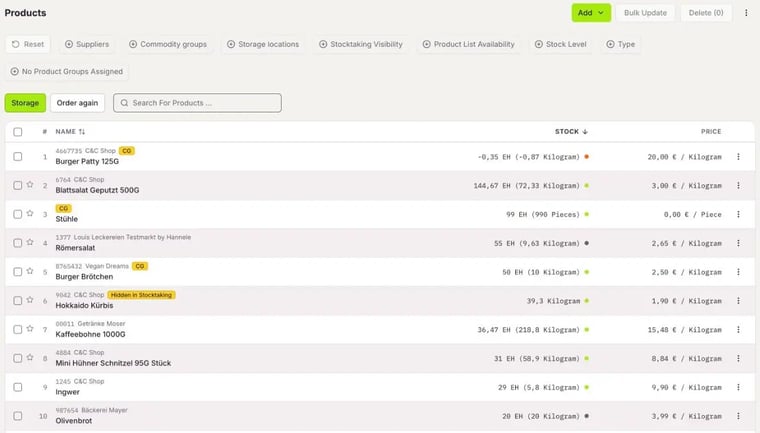
The product list
- Each row shows the item number, supplier, name, stock and price.
- The dot next to the stock shows the status based on your stock limits, for example Ok, Warning, Low or Empty.
- CG means the product has no commodity group yet. SL means it has no storage location yet. Hidden in Stocktaking means the product is not counted in the stocktaking.
- Use the filters at the top to narrow down the list, for example by Suppliers, Commodity groups, Storage locations, Stock Level or Type (shop product or pre-production article). Reset clears all filters.
- With ⋮ at the top right, you download the list with Download CSV or open the Food Waste Report.
Edit a product
- In the row, click ⋮ › Edit Products. The product opens on the right.
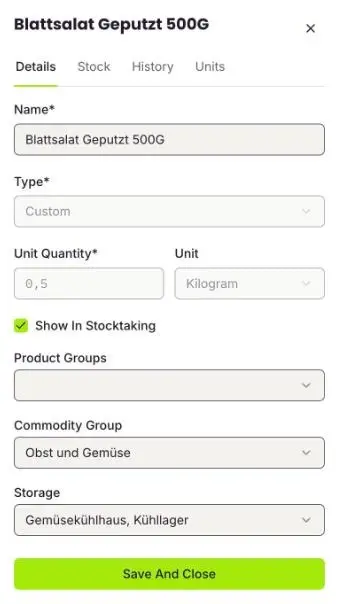
- In the Details tab, you change the name, the quantity per pack and the unit.
- Assign the product to Product Groups, a Commodity Group and Storage locations. A product can be in several storage locations.
- With Show In Stocktaking, you decide whether the product is counted in the stocktaking.
- Click Save And Close.
Stock limits and notifications
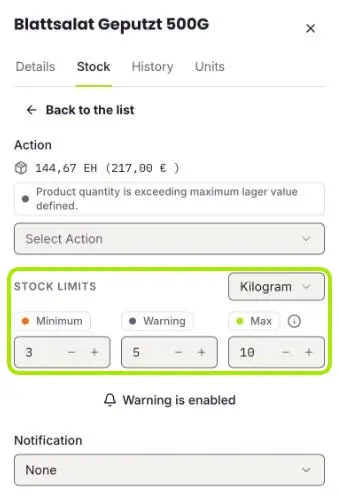
With stock limits, you tell FoodNotify how much of a product should be in stock. This determines the status in the list, the Low on Stock list on the dashboard and the quantities for reordering.
- Click ⋮ › Edit Stock and then Direct Adjustments.
- Choose the unit to the right of STOCK LIMITS.
- Enter three values: Minimum, Warning and Max. Max is the quantity that should be in stock.
- Under Notification, choose whether you get an email: as soon as a certain stock level is reached, when the stock falls below 0, with every change or with a certain percentage change.
- Click Save And Close.
Change the stock
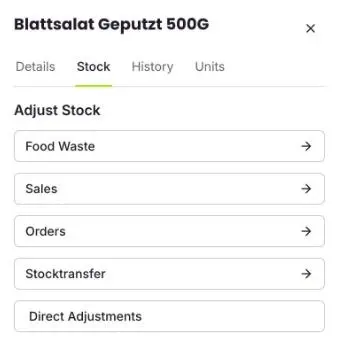
In the Stock tab, you see where changes to the stock come from: Food Waste, Sales, Orders and Stocktransfer. A click takes you to the matching page. With Direct Adjustments, you take goods out or add them by hand.
More: How do I manually remove products from stock or add them?
View the history
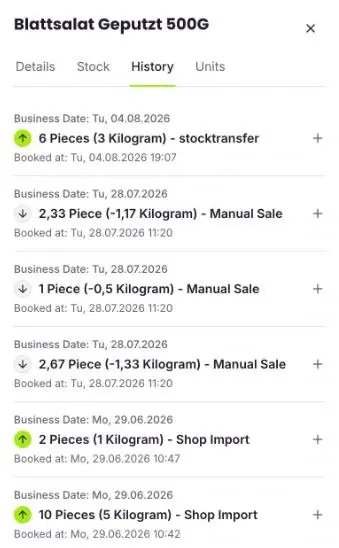
In the History tab, you see every stock movement with the business date, quantity and reason, for example Shop Import, Manual Sale or Breakage. The plus opens the details.
Units for stocktaking
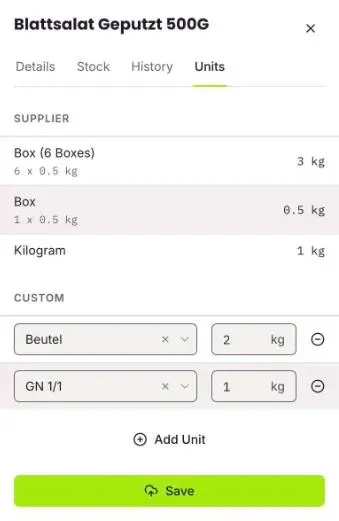
In the Units tab, you see your supplier's units, for example box and kilogram. Under Custom, you create your own counting units, for example a 2 kg bag or a GN container. In the stocktaking, you can then also count in these units.
- Click Add Unit.
- Choose the unit and enter how much it contains.
- Click Save.
Change several products at once
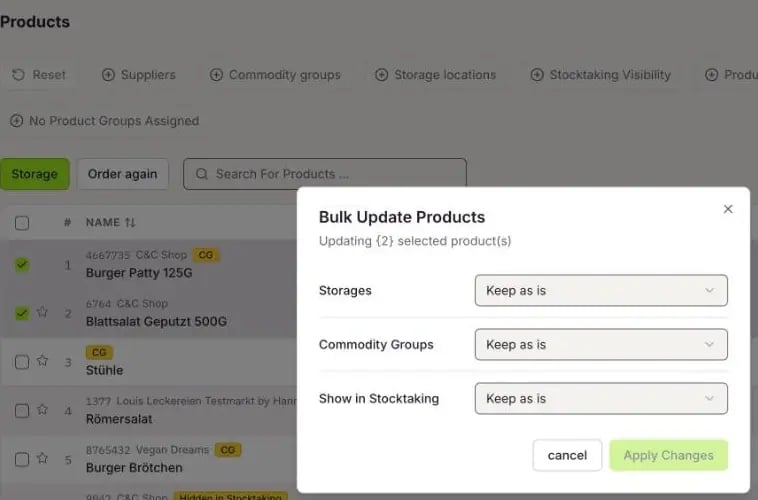
- Tick the products in the list.
- Click Bulk Update.
- For Storages and Commodity Groups, choose what should happen, for example Keep as is, add, replace or remove. For Show in Stocktaking, choose yes or no.
- Click Apply Changes.
With Delete, you remove the selected products with all their data. For safety, you type OK to confirm. This can't be undone.
Create a new product
With Add, you create a product or a Preproduction Product. More: How do I create pre-production articles?