![Nav Support Center.svg]](https://help.foodnotify.com/hubfs/Support%20Center/Design/Nav%20Support%20Center.svg)
Reception is often poor in the storeroom, the cold room or the cellar. With offline mode you keep working anyway: you order via Lists and count your stocktaking. As soon as you are back online, the app synchronizes your data.
Before you start
- Always use the latest version of the app. If automatic updates are switched off, check the App Store or Google Play for an update.
- Prepare offline mode while you still have internet – that is, before you go into an area without reception.
Prepare offline mode
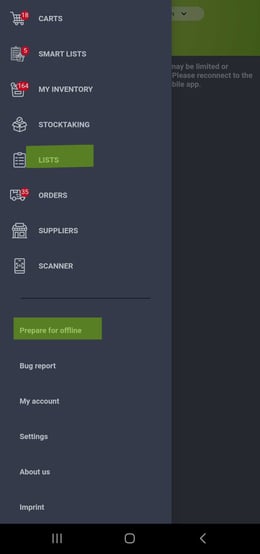
- With an internet connection, open the menu at the top left.
- Tap Prepare for offline.
- The app now loads everything you need offline. Stay online until the preparation is complete.
 | 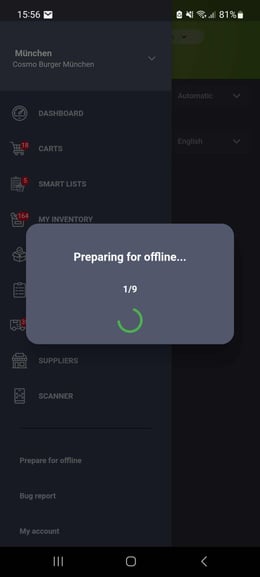 |
Offline mode is then ready. You can now switch on airplane mode or turn off mobile data, for example.
Order offline
- Open Lists and add the products to the cart.
- Once you are back online, tap the cart icon at the top right. This updates your carts.
- Open Carts and send your orders.
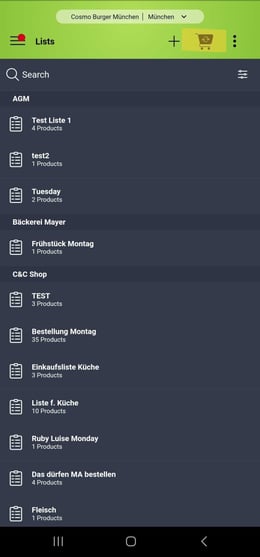
Good to know: Without internet you order via Lists. The order is only sent once you are back online.
Count your stocktaking offline
- For the first synchronization you need a stable connection. You recognize it by the green tick at the top right.
- After that, the app switches between online and offline by itself and continuously synchronizes what you have counted. You can switch on airplane mode, but you don’t have to.
- Product images are also available offline during the stocktaking.
More: How do I do a stocktaking?