![Nav Support Center.svg]](https://help.foodnotify.com/hubfs/Support%20Center/Design/Nav%20Support%20Center.svg)
With the FoodNotify app you see your stock levels at any time – even right at the shelf. All data is synchronized in real time with FoodNotify in your browser.
View stock levels
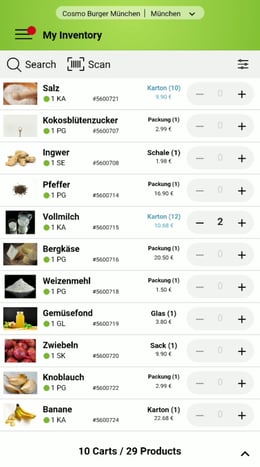
- Check at the top that the right location is selected. Tap it to switch.
- Open My Inventory. The dashboard already shows you how many products are low on stock.
- Every product shows its current stock level. Find a specific product quickly via the search or with Scan.
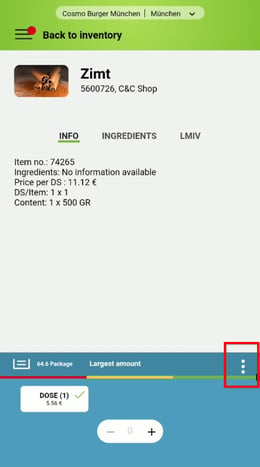
- Tap a product to open its details. The stock level is shown at the bottom.
The colored dot in front of the stock level shows you at a glance how the product is doing: red, yellow or green, in line with your stock levels. If the dot is gray, the product is not in your stock yet. First import an order with this product: How do I import an order into Inventory?
 |  |
Set stock levels
Stock levels define when a product is running low. That way you reorder in time:
- Open the product in My Inventory.
- Tap ⋮ at the bottom and open Set stock levels.
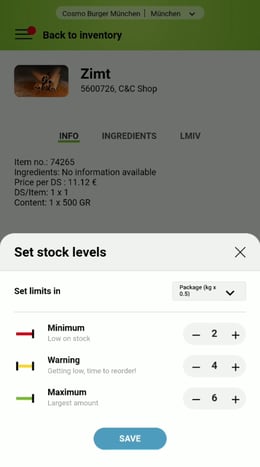
- Under Set limits in, choose the unit, for example package.
- Use − and + to set the three values: Minimum (low on stock), Warning (getting low, time to reorder) and Maximum (largest amount).
- Tap Save.
In the browser you set the stock limits in the product and choose whether you get email notifications: Stock limits and notifications