![Nav Support Center.svg]](https://help.foodnotify.com/hubfs/Support%20Center/Design/Nav%20Support%20Center.svg)
In the app, you order from every supplier that is enabled for your location. First check at the top of the menu that the right location is selected – carts, lists and suppliers always apply to that location.
There are three ways to add products to the cart:
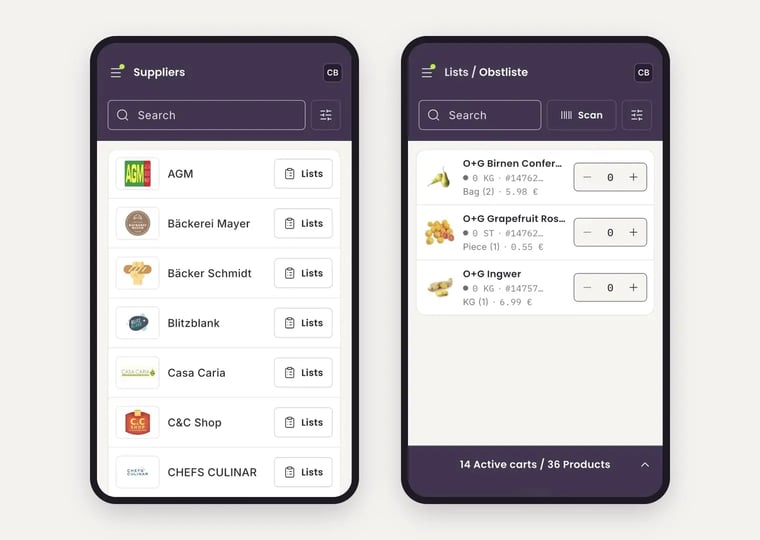
- Lists – your order lists, sorted by supplier.
- Smart Lists – lists with products from several suppliers, with order suggestions.
- Suppliers – tap Lists to open your lists for a supplier directly.
Each supplier has its own cart. You send the order from there.
Order with Lists
- Open Lists in the menu – or tap Lists next to the supplier under Suppliers.
- Tap a list. For each product, you see the stock level, unit and price.
- Set the quantity with − and +. The product goes into the supplier’s cart.
Find a product quickly with the search or with Scan. At the bottom, you see how many carts are active and how many products they contain.
You create lists in the browser: How do I create lists for ordering?
Order with Smart Lists
A Smart List contains products from several suppliers, for example everything for one storeroom. FoodNotify suggests what and how much you should reorder.
- Open Smart Lists in the menu and tap a list. At the top, you see how many order suggestions there are.
- For each product, you see the supplier, item number, stock level, unit and price.
- An order suggestion has a colored outline, for example 3 × Bag (18). Tap the suggestion to take it over.
- Without a suggestion, add a product to the cart with the cart icon and set the quantity with − and +.
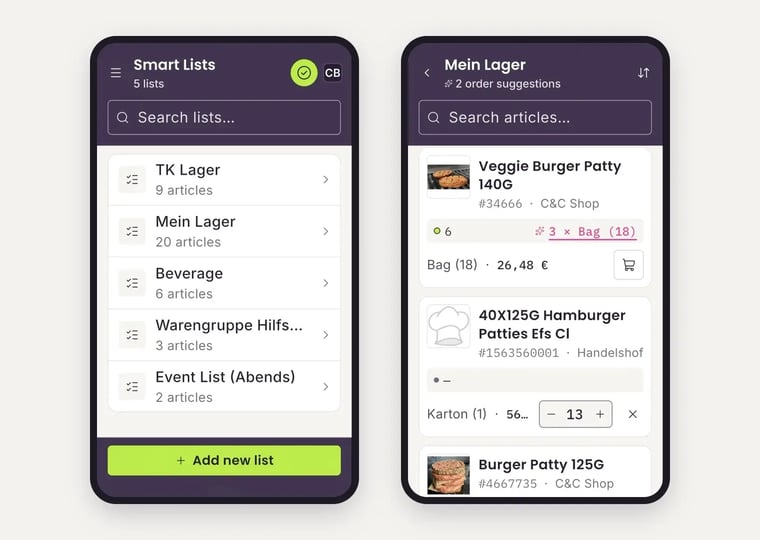
To create a new Smart List, tap + Add new list.
Change the order of products
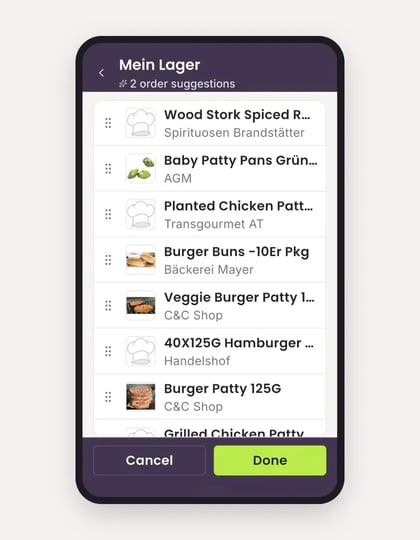
Arrange the products in the order you walk through your storeroom:
- In the Smart List, tap the arrow icon at the top right.
- Hold a product by the handle on the left and drag it to the right place.
- Tap Done. Tap Cancel to discard the change.
More about Smart Lists: Smart lists – order across suppliers
Check the cart and send the order
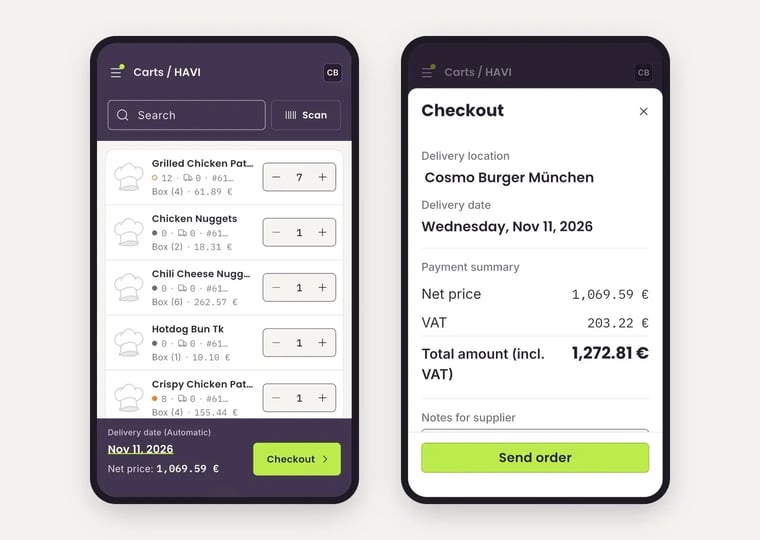
- Open Carts in the menu. At the top, you switch between active carts, drafts and faulty carts.
- Tap a supplier’s cart and check the quantities. Change them with − and +.
- At the bottom, you see the delivery date and the net price. If the date says Automatic, FoodNotify picks the delivery date for you.
- Tap Checkout. Here you see the delivery location and date and the payment summary with net price, VAT and total amount. Under Notes for supplier, you can write a message if needed.
- Tap Send order.
What active, draft and faulty carts mean: Carts: What do Active, Draft and Faulty mean?
After ordering
You find your order under Orders. When the delivery arrives, you check it there and import it into your stock: How do I import a delivery with the FoodNotify app?