![Nav Support Center.svg]](https://help.foodnotify.com/hubfs/Support%20Center/Design/Nav%20Support%20Center.svg)
Your POS system knows articles, FoodNotify knows recipes. Only when you connect them does every sale deduct the right ingredients from your stock. So connect every POS article that uses goods with the matching recipe.
Which articles need a recipe – including variants such as oat milk: Which POS items need a recipe?
Open Manage POS Articles
Click the gear icon at the top right and choose Service integrations › POS system. Click the three dots next to the location › Manage POS Articles. At the top you see how many articles are already connected, e.g. 2 of 3077 connected.
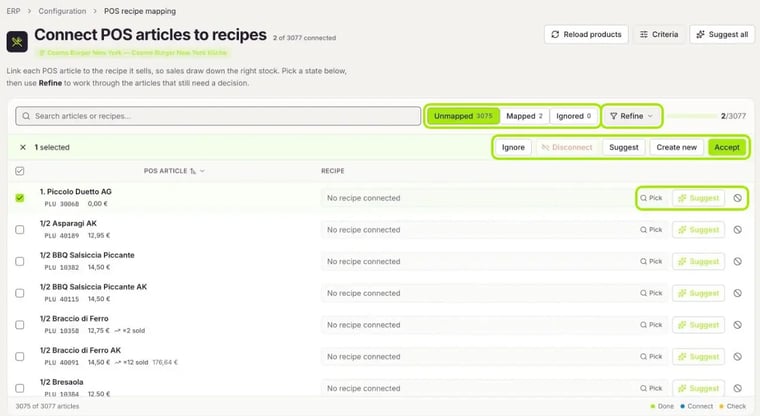
States, search and Refine
- Unmapped – articles without a recipe. This is where you work.
- Mapped – articles connected to a recipe.
- Ignored – articles you deliberately don't import.
Use the search to find articles and recipes by name. Refine narrows the list further, e.g. to To connect, To create, Important, Name mismatch or Not in POS. For every article you see the PLU or ID, the price and – if available – how often it was sold and how much revenue it brought in.
Connect one article
Click Pick in the article's row. Connect to a recipe opens on the right:
- Suggested for you – the best-matching recipe, with the match in percent.
- Similar names – recipes with a similar name, also from other locations.
- This location – the recipes of your location.
Click Connect next to the matching recipe. The arrow icon opens the recipe in a new tab first. The search at the top finds recipes across all locations.
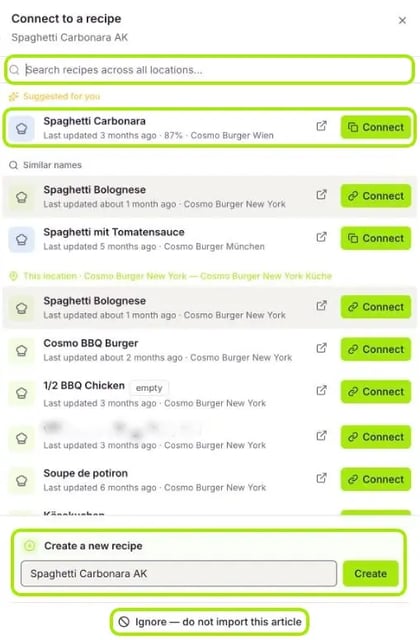
No matching recipe yet? Under Create a new recipe the name of the POS article is already filled in. Click Create and then fill the recipe with ingredients. If you don't need the article, click Ignore — do not import this article.
Use suggestions
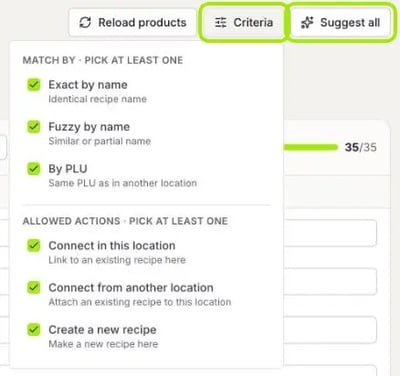
With Suggest in a row, FoodNotify looks for a matching recipe for this article; with Suggest all at the top right, for all articles at once. Check the suggestions before you accept them. The colors at the bottom right show the status: Done, Connect and Check.
You define the rules for suggestions under Criteria:
- Match by (at least one): Exact by name, Fuzzy by name or By PLU – the same PLU as in another location.
- Allowed actions (at least one): Connect in this location, Connect from another location – attach an existing recipe to this location – and Create a new recipe.
Several articles at once
Tick several articles – or the box at the very top to select all. In the bar above, choose Ignore, Disconnect, Suggest, Create new or Accept.
Check and change mapped articles
Under Mapped you see all connected articles with a green check mark next to the recipe. Hover over the recipe to replace it with another one. Flat and Grouped switch the view.
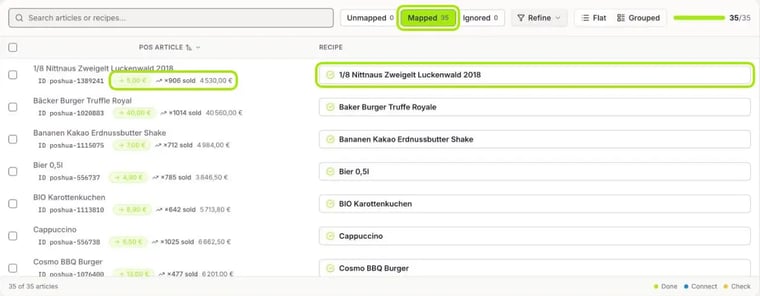
Reload products at the top right fetches the current article list from your POS system. Tip: You can also enter the POS article number directly in the recipe, in the POS ID field. More: How do I create a recipe?