![Nav Support Center.svg]](https://help.foodnotify.com/hubfs/Support%20Center/Design/Nav%20Support%20Center.svg)
In the sidebar, click Inventory › Dashboard. The dashboard shows the location you selected at the top left.
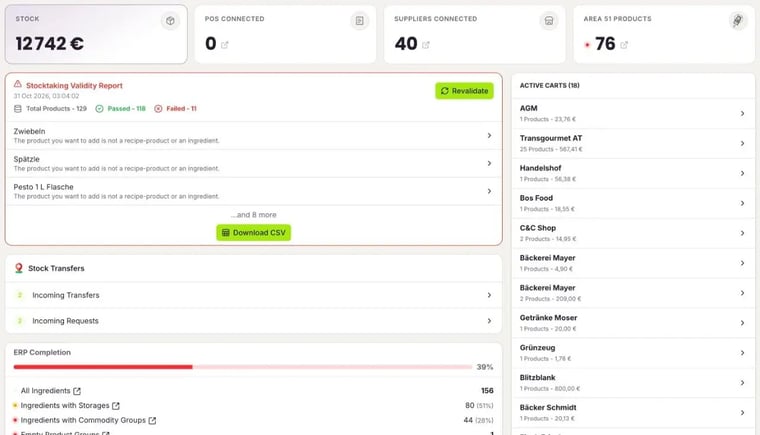
The tiles at the top
- Stock: the value of all products in your storage.
- POS Connected: how many POS systems are connected to this location.
- Suppliers Connected: how many suppliers you have. A click opens the list.
- Area 51 Products: products that are not assigned to a storage location yet. A click shows them to you.
Stocktaking Validity Report
Shows you which products would cause problems in the stocktaking. More: What is the Stocktaking Validity Report?
Stock Transfers
Incoming Transfers and Incoming Requests come from your other locations. A click opens the list. More: How do I transfer products to another location or cost centre?
ERP Completion
Shows you how many of your ingredients already have a storage location and a commodity group.
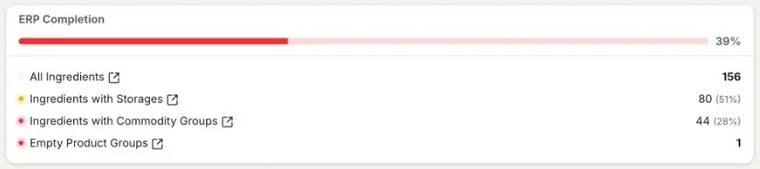
More: ERP Completion: Is my Inventory fully set up?
Low stock, active carts and last orders
- Low on Stock: products whose stock level is below the warning threshold or the minimum. Added to Cart means the product is already in a cart. View All shows you the whole list.
- Active Carts: your open carts per supplier with the number of products and the total. A click opens the cart.
- Last Orders: Imported means the order is already in Inventory. Pending means you still have to import it: How do I import an order?
How to set stock limits so that the Low on Stock list is right: Stock limits and notifications