![Nav Support Center.svg]](https://help.foodnotify.com/hubfs/Support%20Center/Design/Nav%20Support%20Center.svg)
You find stock transfers in the sidebar under Inventory › Stock transfer. Under Transfers, you send goods; under Requests, you ask for goods. You need the right permissions for this.
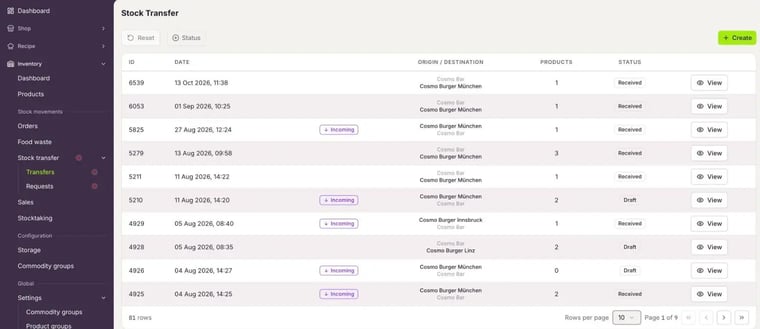
Send products to another location
- Click Inventory › Stock transfer › Transfers and then Create.
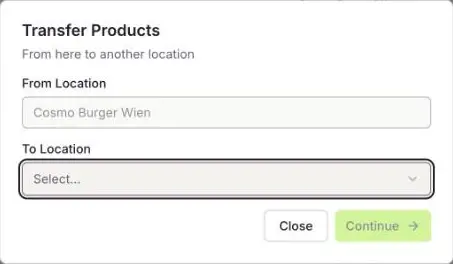
- From Location is the location you are currently in. Under To Location, choose the recipient. This can also be another cost centre, for example from the kitchen to the bar.
- Click Continue.
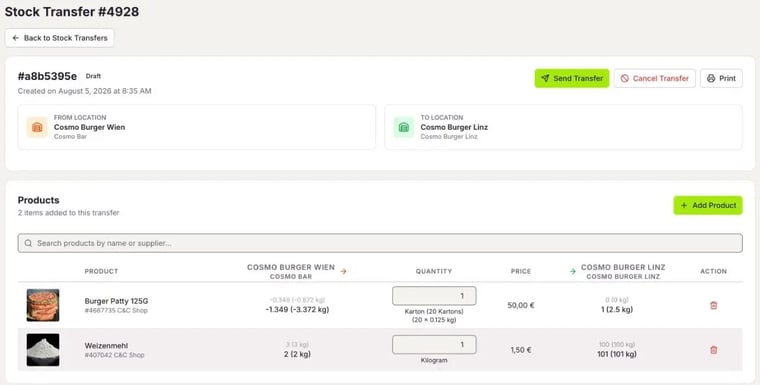
- Click Add Product and choose the products.
- Enter the Quantity for each product. You immediately see how the stock changes for you and for the recipient.
- Click Send Transfer.
- Choose whether the recipient should check the goods first (No, recipient should review first) or whether they are booked immediately (Yes, import and transfer immediately). Click Confirm & Ship.
Tip: Only book immediately when you move goods within one location, for example between two cost centres. Between locations, the recipient should check the goods first.
As long as the transfer is a Draft, you can still change products and quantities. Print opens a print preview, and Cancel Transfer discards the transfer.
Receive a transfer
Incoming transfers are marked Incoming. You also see them on the Inventory dashboard under Stock Transfers, and a red dot in the sidebar shows new transfers.
- For the transfer, click View.
- Check the products and quantities.
- Click Receive Transfer. The checked products go into your stock. If something is wrong, click Reject Transfer.
The Status column shows you where a transfer stands: Draft, Shipped, Received, Rejected or Canceled.
Request products from another location
- Click Inventory › Stock transfer › Requests and then New Request.
- To Location is your location. Under From Location, choose the location that should send you the goods, and click Continue.
- Add the products and quantities and click Send Request.
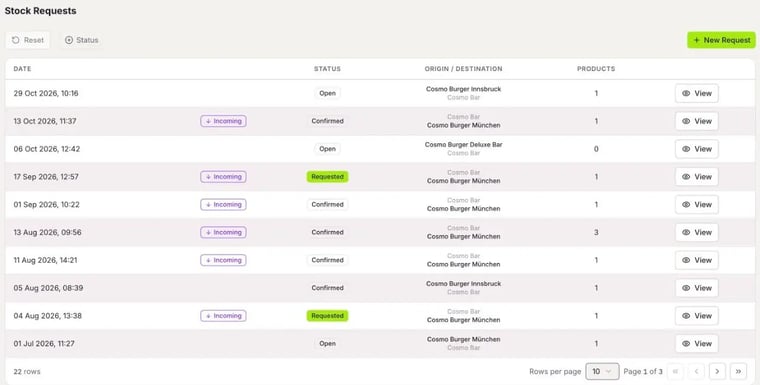
The other location sees your request as Incoming. They click Create Stock Transfer, adjust the quantities if needed and send you the goods. If they can't deliver, they click Reject.
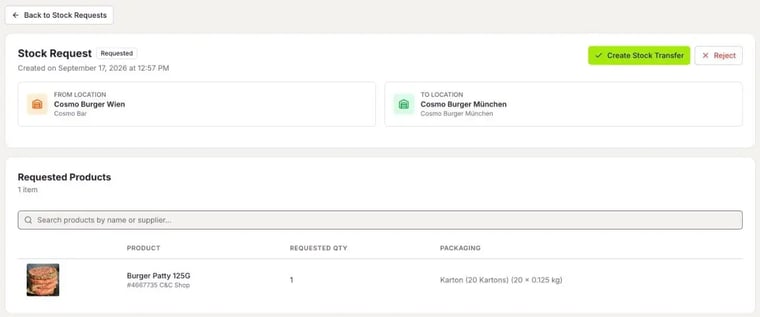
A request has the status Open, Requested, Confirmed, Rejected or Canceled.