![Nav Support Center.svg]](https://help.foodnotify.com/hubfs/Support%20Center/Design/Nav%20Support%20Center.svg)
The product data in FoodNotify come from your suppliers. Not every supplier transmits all data, and some details change constantly. Your supplier is therefore the first point of contact for the data. Ideally, agree with them and with us right at the start which data they send to FoodNotify and how often.
I see no products or too few
- Under My Products you only see products from your supplier's ordering list and products you have already ordered via FoodNotify. You find the full range under All Products.
- Lists with orderable products are active for this supplier. Then you can only order products that are on such a list. More: How do I create lists for ordering?
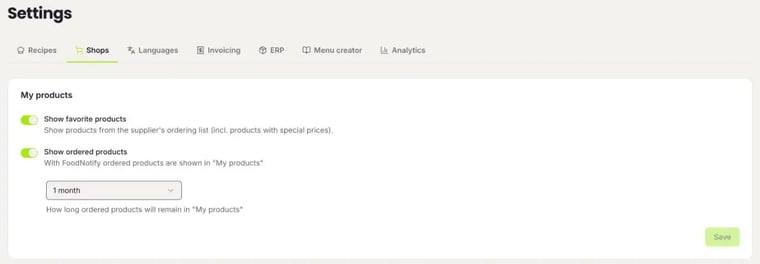
You decide what appears under My Products under Shop › Settings: there you switch Show favorite products and Show ordered products on or off and choose how long ordered products stay in the list.
Allergens, nutritional values or additives are missing
The supplier does not transmit these data, or there are no values for the product.
The price is wrong or the product is not available
- It is a seasonal product and currently not in the range.
- You have not ordered the product for a long time. Some suppliers only release products for a certain time and then remove them from your customer range.
- You have never ordered the product, so it is not in your range.
- The prices have not been updated yet, or their validity has expired.
In the cart you recognise such cases by their colour: items highlighted in orange cannot be delivered on the selected delivery date. Items highlighted in red lack information, for example a price, and cannot be ordered. More: Carts: What do Active, Draft and Faulty mean?
Who can change the data?
That depends on how the supplier is connected:
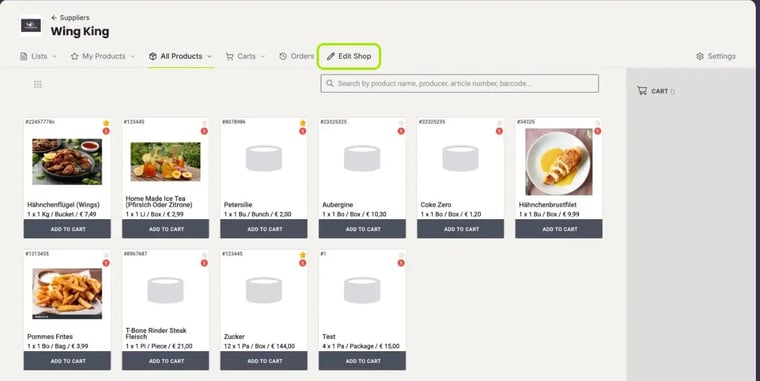
- You manage the supplier yourself: Then you see the Edit Shop tab at the supplier. In the supplier overview, a pencil also appears when you move the mouse over its card. You add or correct the data yourself: How do I add my own supplier and manage its products?
- The supplier is connected: Then there is no Edit Shop tab. The data come via the interface, and neither you nor we can change them. Ask your contact at the supplier for missing products or details. You can save their contact details at the supplier under Settings.
Do you think something is going wrong with the transfer? Then write to us and choose the category Faulty Product Data.