![Nav Support Center.svg]](https://help.foodnotify.com/hubfs/Support%20Center/Design/Nav%20Support%20Center.svg)
Interfaces save you typing: data flows automatically between FoodNotify and your other systems. Sales from your POS system deduct your ingredients, suppliers provide product data and prices, and databases give you ready-made product information for your recipes.
Open Service integrations
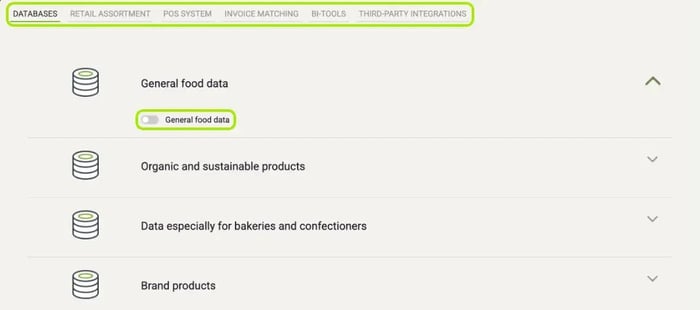
Click the gear icon at the top right and choose Service integrations. At the top you find the tabs Databases, Retail assortment, POS system, Invoice matching and BI-Tools, plus a tab for third-party systems.
What you can connect
- Databases – food databases with ready-made product data: General food data, Organic and sustainable products, Data especially for bakeries and confectioners and Brand products. Switch on the database you want – once it is approved, you use its products in your recipes.
- Retail assortment – takes you to your suppliers under Shop › Suppliers. Here is how it works: How does supplier integration work in FoodNotify?
- POS system – connects your POS system with FoodNotify. Every sale then deducts the ingredients of the matching recipe from your stock.
- Invoice matching – shows your connections to Billbox and the cost center each one belongs to.
- BI-Tools – the connection to Sell&Pick. Our support activates it for you.
- Third-party integrations – for example Eaternity: automatically calculates the carbon footprint of your recipes and ingredients.
Carbon footprint with Eaternity
With the Eaternity extension, FoodNotify automatically calculates the carbon footprint of your recipes and ingredients. Here is how to unlock it:
- Write to our support at support@foodnotify.com. You will receive a token for your account.
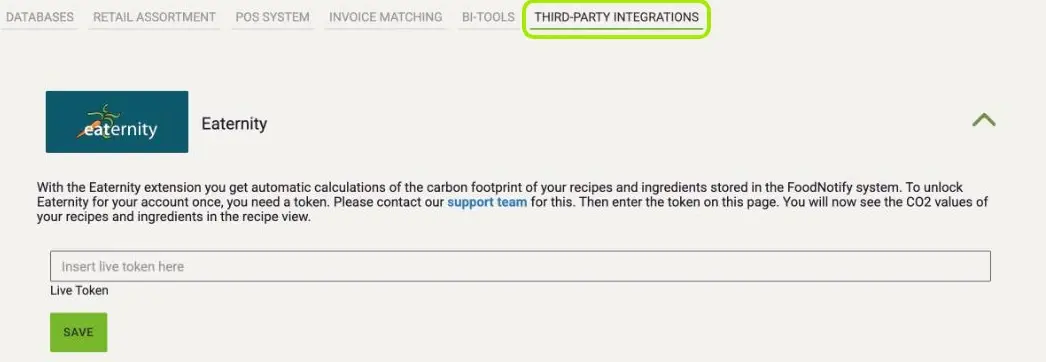
- Open Service integrations › Third-party integrations and expand Eaternity.
- Enter the token in the Live Token field and click Save.
You will then see the CO2 values of your recipes and ingredients in the recipe view.
Connect your POS system
The POS connection is the most important interface for your inventory management. Here is how to proceed:
- Find out what the connection brings and which POS systems you can connect: What are the benefits of connecting my POS system to FoodNotify?
- Connect your POS system and set up the synchronization: How do I connect and configure my POS system?
- Connect your POS articles to recipes: How do I connect POS articles to my recipes?
Need a new interface?
We keep adding new interfaces. If a connection is missing, write to us at support@foodnotify.com. A new interface is programmed and tested specifically and is therefore subject to a charge.