![Nav Support Center.svg]](https://help.foodnotify.com/hubfs/Support%20Center/Design/Nav%20Support%20Center.svg)
Under Recipes › Ingredients, you see all the ingredients used in your recipes. Products that no recipe uses don't appear here.
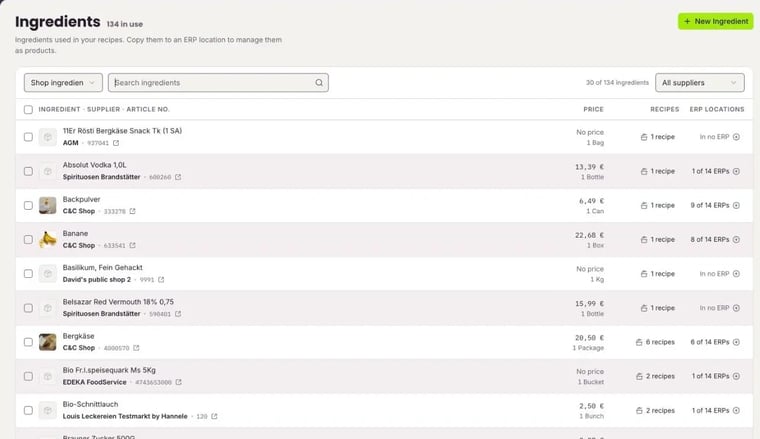
What you see
- the Ingredient with supplier and item number, and its Price
- Recipes: how many recipes use the ingredient
- ERP locations: in how many Inventory locations the ingredient already exists as a product, for example 1 of 14 ERPs or In no ERP
With the filter, you choose which ingredients you see: your suppliers' products, your own ingredients, product groups or recipes. Next to it, you search by name or narrow the list down to one supplier.
Replace an ingredient in recipes
Click the number of recipes to replace the ingredient in all or selected recipes: How do I replace ingredients in my recipes?
Copy to Inventory
For an ingredient to be counted and reordered in Inventory, it has to exist there as a product. You can take care of this here for many ingredients at once:
- Tick the ingredients you want.
- Click Copy to ERP.
- Under What gets copied, choose Only what is needed – each location only gets the ingredients its recipes use – or All selected ingredients.
- Choose the Target locations and click Copy to … locations.
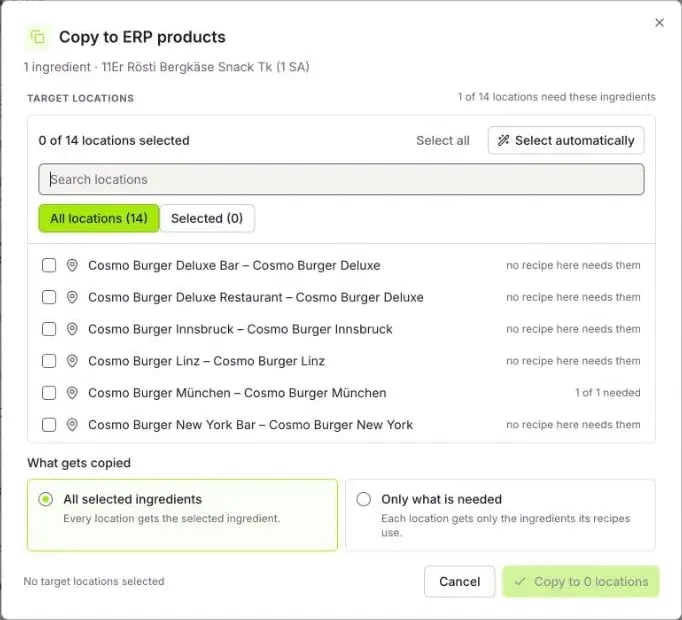
FoodNotify warns you if a location would get products that none of its recipes needs – they would only sit unused in stocktaking and ordering.
If you copy recipes, they are created as pre-production articles in the target locations: How do I create pre-production articles?