![Nav Support Center.svg]](https://help.foodnotify.com/hubfs/Support%20Center/Design/Nav%20Support%20Center.svg)
Normally, your stock changes by itself: through orders, sales, food waste and stock transfers. For everything else, there are direct adjustments.
Remove or add products
- Open Inventory › Products.
- For the product, click ⋮ › Edit Stock.
- Click Direct Adjustments.
- Under Action, choose either Take From The Stock or Add To The Stock.
- Enter the Amount and choose the Unit. If needed, add a Comment.
- Click Save And Close.
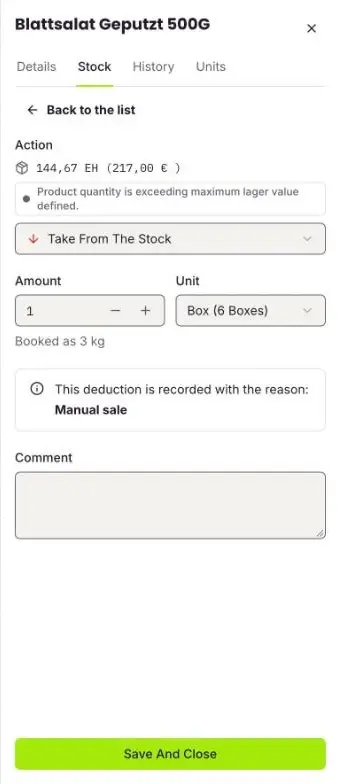
Before you save, FoodNotify shows you the reason the booking is recorded with, for example Manual sale for a removal.
For a pre-production article
When you add a pre-production article, for example a freshly made pesto, you can tick Deduct Ingredients. FoodNotify then deducts the recipe's ingredients for this quantity from your stock. More: How do I create pre-production articles?
Spoiled or broken goods?
Use Food waste for this. There you choose the reason, for example spoilage or breakage, and later see what waste costs you: Record food waste
View all bookings
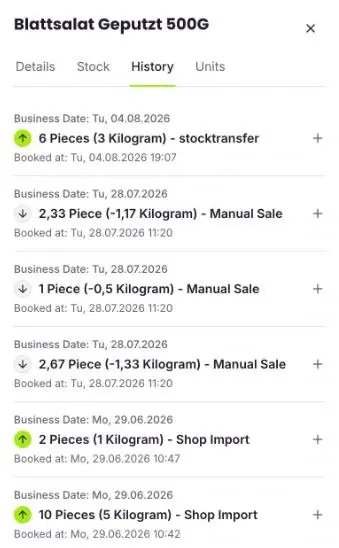
In the History tab, you see all removals and additions of a product with date, quantity and reason.