![Nav Support Center.svg]](https://help.foodnotify.com/hubfs/Support%20Center/Design/Nav%20Support%20Center.svg)
In the Menu Creator you put your menu together from building blocks. Recipes come straight from FoodNotify: name, description, price, allergens, additives and nutritional values are filled in automatically.
Your menus
Open Menu Creator › Menu creator. You see all your menus as tiles, each with the number of pages and recipes. Click a tile to open a menu, or click Create new to start a new one.
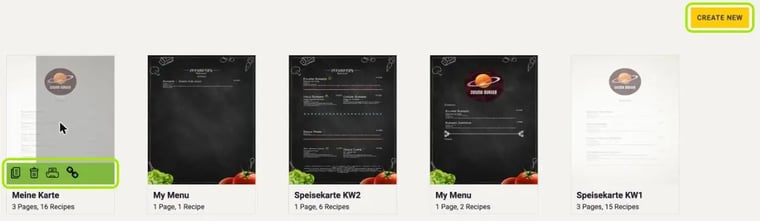
When you hover over a tile, four icons appear:
- Duplicate – creates a copy of the menu.
- Delete – removes the menu after a confirmation.
- Print – creates a PDF of the menu.
- Export Menu – opens the menu as a web page in a new tab.
The editor at a glance
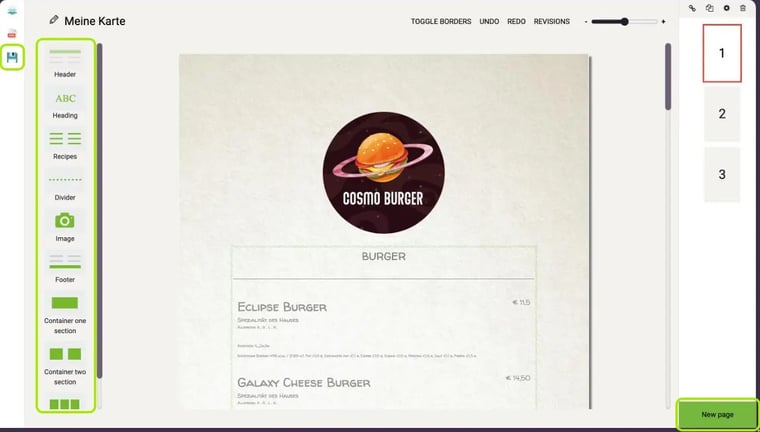
- On the left you find the icons Widgets, PDF and Save, and next to them the widgets: Header, Heading, Recipes, Divider, Image, Footer and Container with one, two or three sections.
- At the top you find Toggle borders, Undo, Redo, Revisions and the zoom slider.
- On the right you see the pages of your menu. Click New page to add a page.
Add widgets
- First drag a container onto the page – with one, two or three sections. All other widgets go into a container.
- Then drag Header, Heading, Recipes, Divider, Image or Footer into the container.
- When you hover over a widget, a bin for deleting and a cross arrow for moving appear at its top left.
Tip: Toggle borders shows or hides the guide borders of the widgets.
Adjust recipes
Click a recipe on the menu. A panel with the tabs Content and Styling opens on the right.
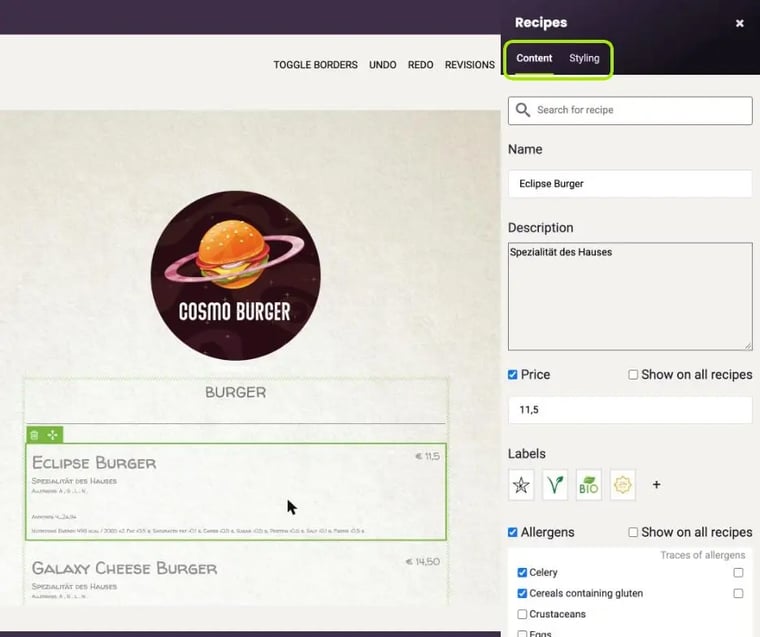
In Content, use Search for recipe to pick the recipe and adjust its Name, Description and Price. Below, you set Labels and choose whether Allergens (including Traces of allergens), additives and nutritional values are shown. With Show on all recipes, your choice applies to all recipes on the menu.
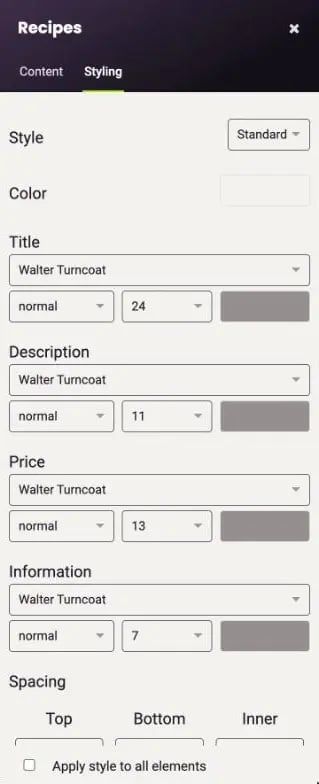
In Styling you set the style and color as well as the font, font weight, size and color for the title, description, price and information. Under Spacing you set the spacing at the top, bottom and inside. Apply style to all elements applies the settings to the whole menu.
Design pages
On the right you see all pages of your menu. Click New page to add one. With the gear icon above the pages you set the color, the inner spacing and – with Upload image – a background image for the selected page.
Save, revisions and PDF
- Click Save on the left to save your changes.
- Revisions lists earlier saved versions of the menu with date and time.
- PDF creates a PDF of your menu for printing.
If a recipe on your menu changes, FoodNotify lets you know: “Updates have been made to the recipes found in this menu.” Click View updates to see what changed – for example the name, price, description, nutritional values or allergens.