![Nav Support Center.svg]](https://help.foodnotify.com/hubfs/Support%20Center/Design/Nav%20Support%20Center.svg)
Buffet cards are small signs for your buffet or counter. FoodNotify fills them with the data from your recipes – name, price, allergens, additives and nutritional values.
Your buffet cards
Open Menu Creator › Buffet cards. At the top left you choose the location or All locations. When you hover over a row, the icons open, copy, print PDF and delete appear.

Create new buffet cards
- Click New buffet card.
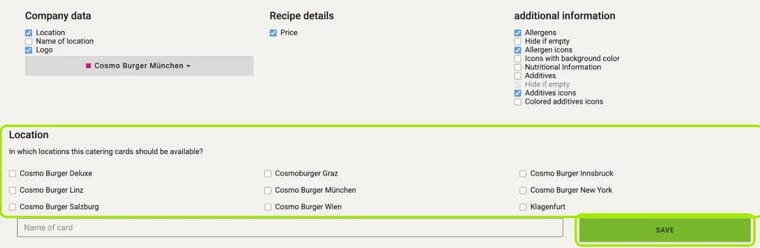
- At the top, choose what should appear on the cards:
- Company data: location, name of location and logo
- Recipe details: price
- additional information: allergens, allergen icons, nutritional information, additives and additives icons – the icons with a background color if you like. Hide if empty hides empty information.
- Under Location, tick the locations where the cards should be available.
- Enter a Name of card.
Add recipes and print
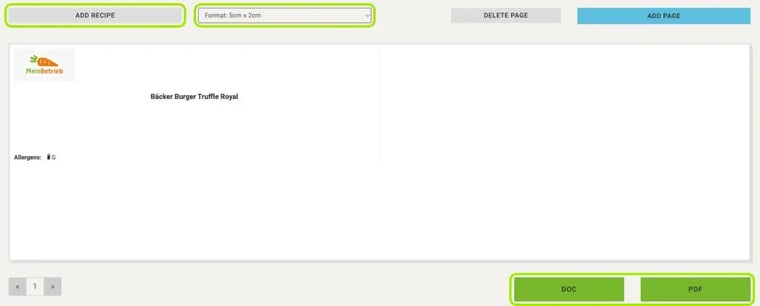
- Click Add recipe. In the “Add a dish to the card” window, click a recipe or use Search for recipes. Each recipe becomes one card.
- Choose the Format: 4 × 2 cm, 5 × 2 cm, 6 × 2 cm or 5.5 × 10 cm.
- Use Add page and Delete page to manage the pages. The preview shows you what the cards look like.
- Click Save.
- Click PDF or DOC to create the file for printing.
Tip: You can open, copy, print or delete existing buffet cards with the icons in the overview.
Learn more: How do I create a menu?