![Nav Support Center.svg]](https://help.foodnotify.com/hubfs/Support%20Center/Design/Nav%20Support%20Center.svg)
If you have several locations, it's best to create commodity groups, product groups and storage locations centrally. Then they have the same names everywhere, and your reports can be compared. You find the settings in the sidebar under Inventory › Global › Settings.
You don't see the Global section? Write to us at support@foodnotify.com.
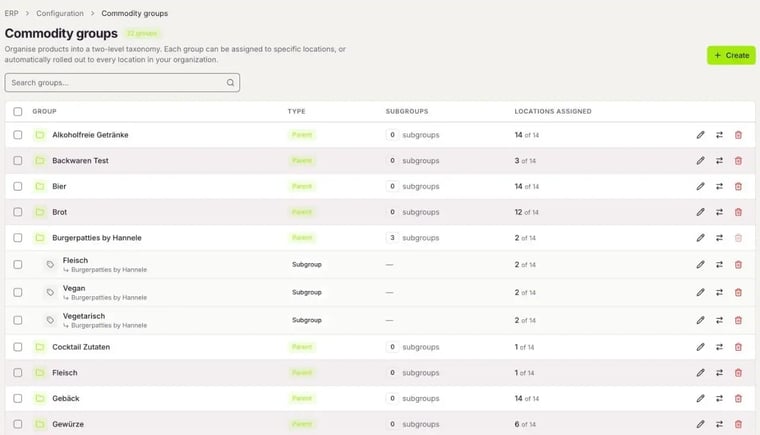
Commodity groups
Commodity groups have two levels: parent groups and subgroups. You assign each group to specific locations or automatically to all. Instructions: How do I create commodity groups?
Product groups
Product groups combine similar products, for example apples from different suppliers. You use them in recipes and in Inventory.
- With Create, you create a product group and choose the locations.
- With Assign products, you add or remove products. You set one product as the group's default product.
- The Translations column shows in which languages the name has already been translated.
- With Move products, all products go into another product group.
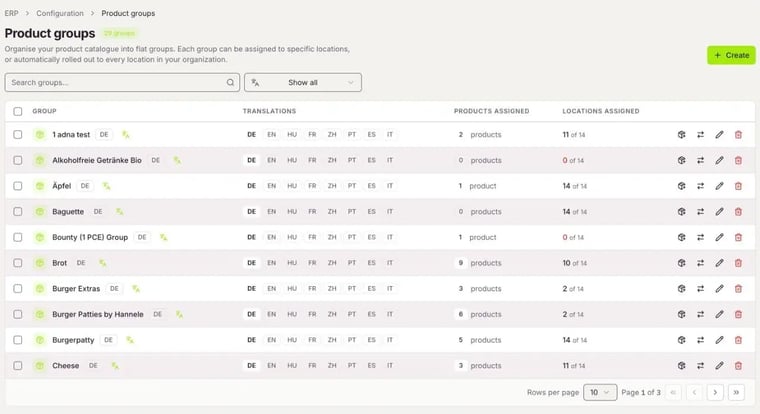
You see product groups without products on the Inventory dashboard under ERP Completion › Empty Product Groups.
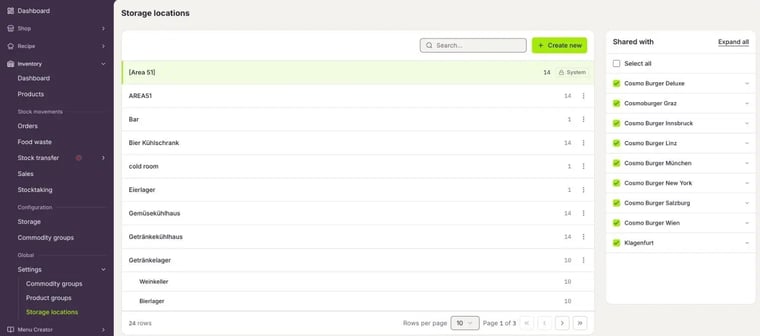
Storage locations
You also create storage locations centrally and tick the locations and cost centres under Shared with. Instructions: How do I create storage locations?
Merge identical commodity groups
If several locations have created their own commodity groups with the same name, merge them like this:
- Assign the commodity group that should remain to all locations you want and save.
- For the old commodity group, click Move products and choose the new group as the target.
- Delete the old commodity group, which is now empty.
Caution: You can't restore deleted groups and storage locations.