![Nav Support Center.svg]](https://help.foodnotify.com/hubfs/Support%20Center/Design/Nav%20Support%20Center.svg)
The dashboard is your start page in FoodNotify. Open it with Dashboard at the top of the sidebar. It shows you at a glance what needs your attention and takes you to the right page with one click.
What you see applies to the location and cost center selected at the top left. Click it to switch.
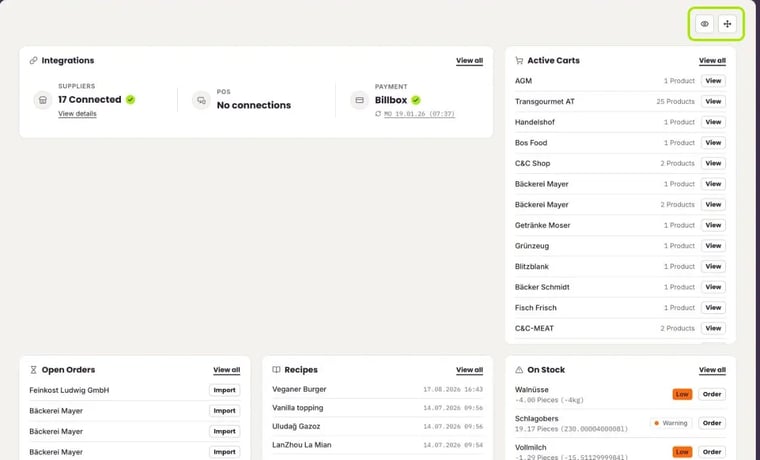
The blocks at a glance
Use View all at the top right of a block to open the full list in that area.
- Integrations: how many suppliers are connected (with View details), whether a POS is connected and the status of invoice matching.
- Active Carts: your open carts per supplier with the number of products. View opens the cart, where you place the order.
- Open Orders: orders that are not in your inventory yet. Click Import to take them over.
- Recipes: the recipes edited most recently, with date and time.
- On Stock: products running low. The label Low, Warning or Ok shows how urgent it is. Click Order to reorder right away.
- Active Stocktakings: stocktakings in progress. Click Proceed to continue.
- Upcoming Events: your next catering events.
- Turnover: revenue per day for the last 15 days. This block is only available if a POS is connected for the cost center.
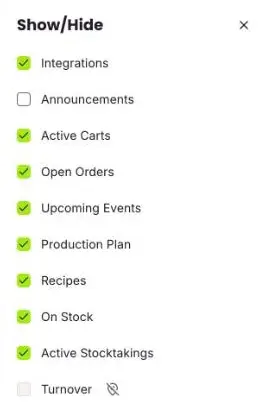
You can also show the blocks Announcements and Production Plan. Which blocks you can use depends on your plan.
Show or hide blocks
- Click the eye icon at the top right (Show/Hide).
- Tick every block you want to see. Untick a block to hide it.
- Close the panel with the X.
If a block is greyed out, the icon next to it tells you why, for example for turnover when no POS is connected.
Arrange and resize blocks
- Click the four-way arrow at the top right (Edit layout). The button turns green.
- Drag the blocks where you want them.
- Use the handle at the bottom right of a block to change its size.
- Click the four-way arrow again when you are done.
Put the blocks you need every day at the top. For example On Stock and Open Orders if you look after purchasing.