![Nav Support Center.svg]](https://help.foodnotify.com/hubfs/Support%20Center/Design/Nav%20Support%20Center.svg)
Under Inventory › Sales, you see all sales of your location. Every sale deducts the ingredients of the recipes sold from your stock.
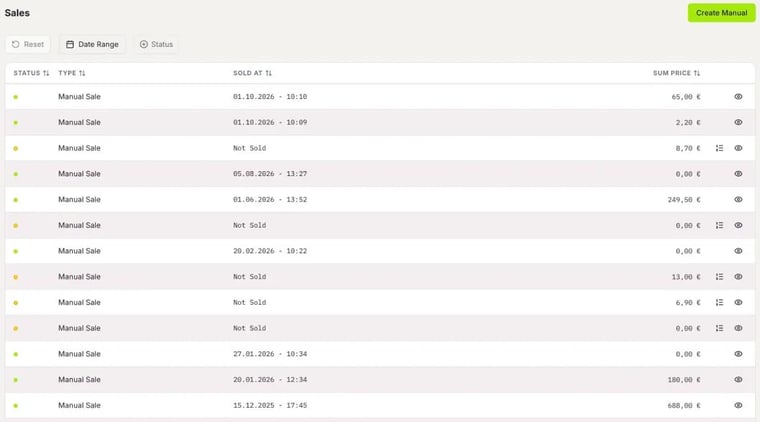
- Type shows where the sale comes from: your POS or a Manual Sale.
- A green dot means the sale is finished. A yellow dot and Not Sold mean the sale is still open and not booked yet.
- The eye icon opens the details. In the Recipe tab, you see which recipes were sold.
- Use the filters at the top to choose the Date Range and the Status.
Sales from your POS
If your POS is connected to FoodNotify, sales come in automatically. For this, every POS item needs a recipe.
Don't see any sales even though your POS is connected? Then the transfer has to be activated first. Write to us at support@foodnotify.com.
Enter a manual sale
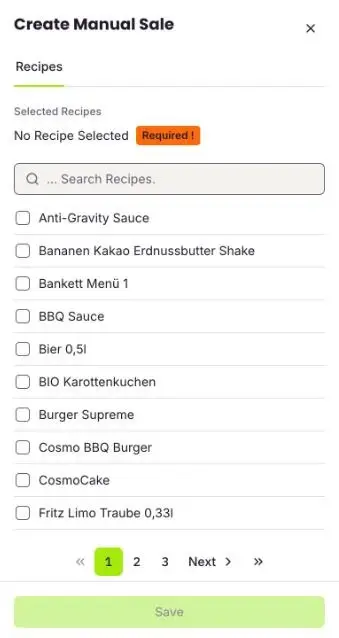
- Click Create Manual.
- Tick the recipes you have sold. The search helps you find them faster.
- Click Save.
- Enter the Amount of sales for each recipe. You can adjust the Price with the pencil.
- Click Finish and confirm with yes.
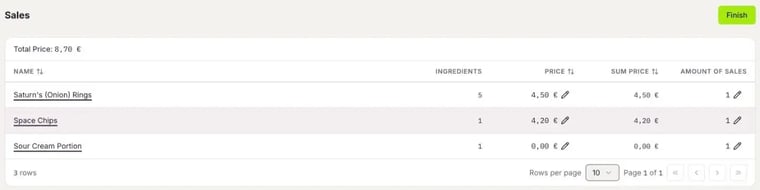
The sale is booked in the background and appears as finished shortly afterwards. You reopen an open sale that you haven't finished yet with the list icon in the list.
More about getting started with Inventory: Where do I start in Inventory?