![Nav Support Center.svg]](https://help.foodnotify.com/hubfs/Support%20Center/Design/Nav%20Support%20Center.svg)
Under Recipes, your recipes are always with you – on your smartphone or on the tablet in the kitchen. You maintain the recipes themselves in the browser: How do I create a recipe?
Find recipes
Open Recipes in the menu. At the top, you search for recipes and filter them. Tap a tile to open a recipe.
View a recipe
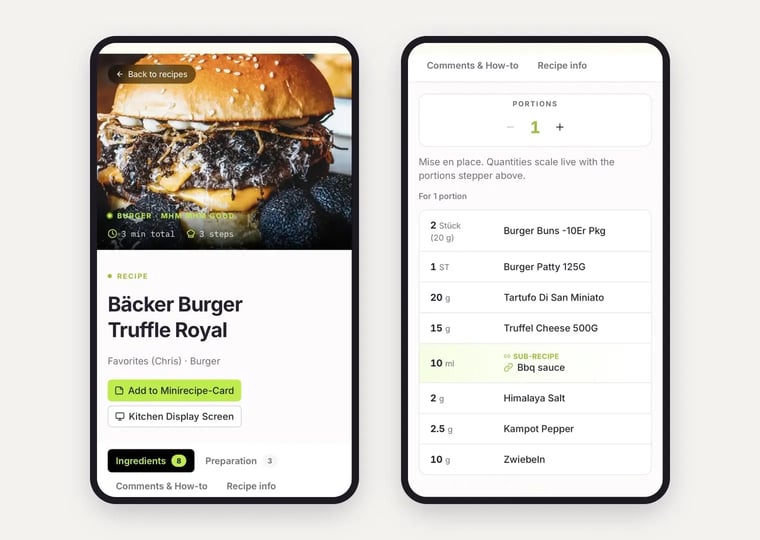
At the top, you see the recipe image, the total time and the number of steps. Below, you find the tabs:
- Ingredients – all ingredients with quantity and unit. Sub-recipes are marked and linked.
- Preparation – all steps with duration and equipment.
- Comments & How-to and Recipe info – more details about the recipe.
With the Portions stepper, FoodNotify recalculates all quantities instantly – handy for your mise en place.
Cook with the kitchen display
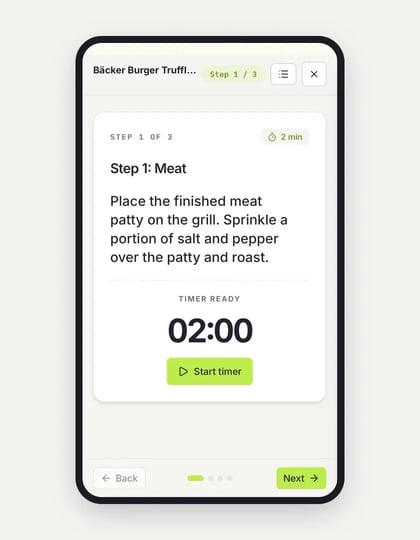
- In the recipe, tap Kitchen Display Screen.
- Each step appears large and easy to read, with duration and equipment. At the top, you see which step you are on.
- If a step has a duration, tap Start timer to start the timer.
- Use Next and Back to move through the steps.
Tip: With Add to Minirecipe-Card, you collect recipes for compact recipe cards, for example for the pass. How to print them is explained here: What is the Recipe Viewer?