![Nav Support Center.svg]](https://help.foodnotify.com/hubfs/Support%20Center/Design/Nav%20Support%20Center.svg)
- In the sidebar, click Inventory › Products.
- Click the three dots next to the product and then Edit Stock.
- In the Stock tab, click Direct Adjustments.
- Under Action, choose Take From The Stock or Add To The Stock.
- Enter the Amount and Unit. Below you see how much FoodNotify books. Add a comment if needed.
- Click Save And Close.
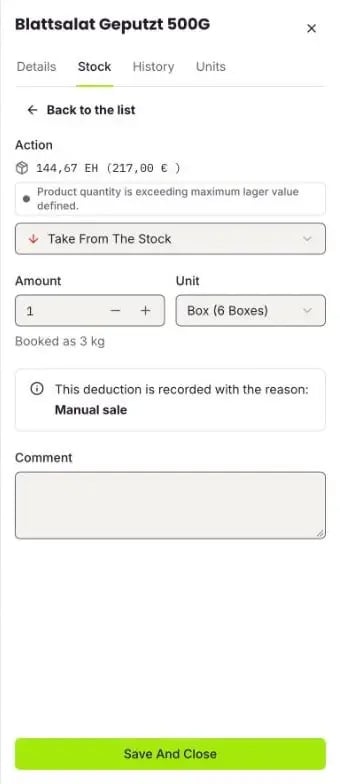
FoodNotify books a removal as a manual sale. If goods are broken or spoiled, use Food waste instead. There you choose a reason such as breakage or spoilage and later see how much value you have thrown away.
You find all additions and removals of a product in the History tab.
In detail: How do I manually remove products from stock or add them? and Record food waste