![Nav Support Center.svg]](https://help.foodnotify.com/hubfs/Support%20Center/Design/Nav%20Support%20Center.svg)
If your supplier has no interface to FoodNotify, you add it yourself and manage its range. Your orders are then sent to the supplier by email. You need the permission Create/edit shops.
Add a supplier
- In the sidebar, click Shop › Suppliers. First check whether the supplier already exists.
- Click Add supplier. FoodNotify immediately creates a new supplier called "My Shop".
- Enter the supplier's details in the Settings tab (see below) and click Save.
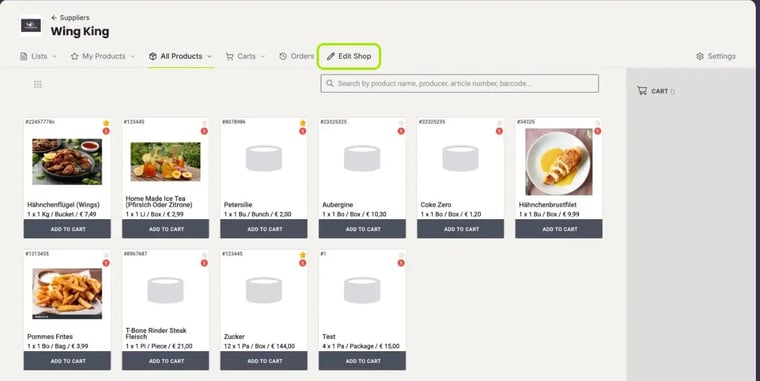
Later you reach the settings via the Edit Shop tab at the supplier. In the supplier overview, a pencil also appears when you move the mouse over the card of a supplier you manage yourself.
The settings
- Logo, name of shop, sector and currency: This is how you recognise the supplier in the shop.
- Order type: Your orders are sent to this email address. Check it carefully.
- Minimum order amount: If the cart is below this amount, FoodNotify shows a warning.
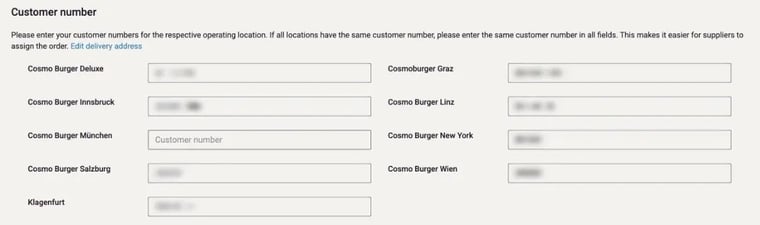
- Customer number: Enter your customer number with the supplier for each location. If all locations have the same number, enter it in every field. Only locations with a customer number can order.
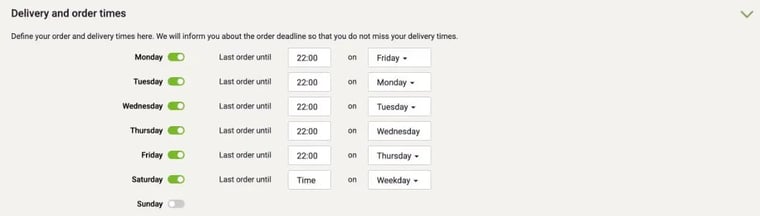
- Delivery and order times: For each weekday, set whether there is a delivery and by when you have to order for it.
Create commodity groups
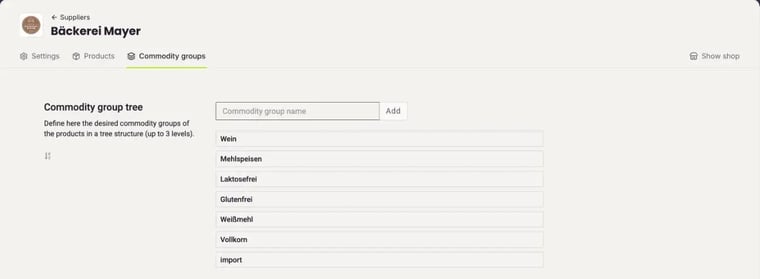
In the Commodity groups tab you create the supplier's commodity group tree, for example fruit, vegetables or drinks. Enter a name and click Add. Use drag and drop to reorder the commodity groups or to turn them into subgroups, up to three levels deep.
It is best to create the commodity groups before you import products. Then you can assign them to the products straight away.
Import products
In the Products tab you have three options:
- Quick add: You enter name, article number, weight unit, single units, packaging and price directly in the table. A new product is saved automatically as soon as it has a name. You add further details such as allergens via the pencil next to the product.
- Single item: You create a product with all details, with master data, images, categories, units and prices, labelling and quality seals.
- Excel import: for many products at once, see below. We recommend this for more than 25 products.
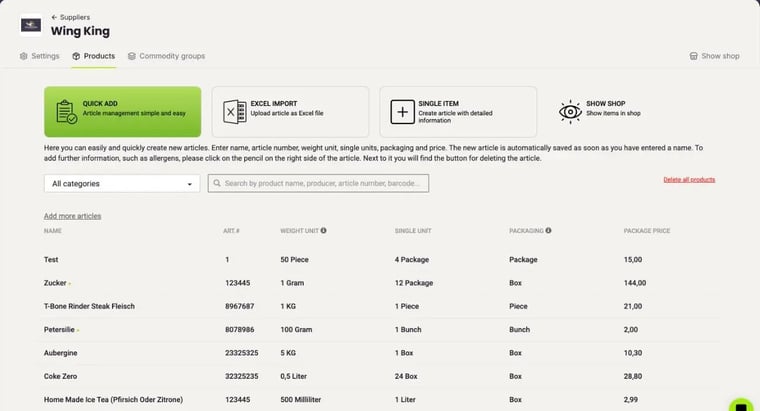
With Show shop you see the range as it appears when ordering.
Import and update products via Excel
- In the Products tab, click Excel import.
- Click Download Excel Form. The file already contains the products you have with this supplier.
- Add new products at the bottom of the list or change existing rows, for example prices or names.
- Upload the file again via Choose file.
We then enter the data into the ordering system for you.
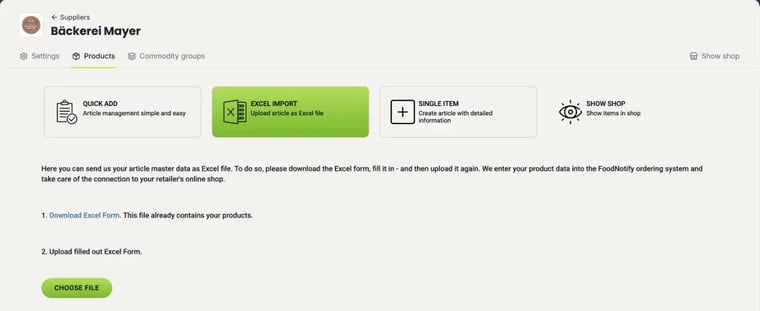
Tips for the form:
- Leave the ID column unchanged. FoodNotify assigns it automatically and uses it to match the products, for example in your recipes.
- You can leave columns empty that you would answer with "no", for example allergens the product does not contain.
- All columns are explained in the guide to the Excel template (PDF, in German).
Delete products
If your supplier no longer carries a product, delete it in the Products tab. You find the button for this on the right of the product, next to the pencil.
Caution: Deleted products are no longer available in your recipes either.