![Nav Support Center.svg]](https://help.foodnotify.com/hubfs/Support%20Center/Design/Nav%20Support%20Center.svg)
Lists make ordering faster: you collect the products you need regularly and order straight from the list. Lists always belong to one supplier. For lists across several suppliers there are smart lists.
Which lists are there?
- Private list: Only you can see and edit it, for example for your favourites.
- Public list: You share it with your colleagues.
- List with orderable products: It restricts a supplier's range. Anyone without the permission Order all products can then only order products from these lists.
You also see your lists in the FoodNotify app.
Create a list
- In the sidebar, click Shop › Suppliers and open the supplier.
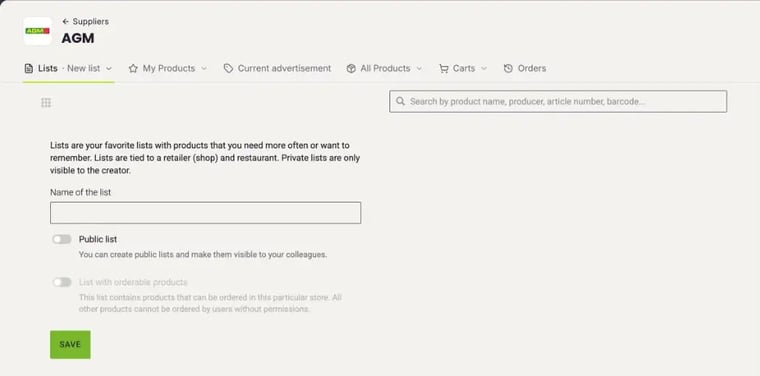
- Click Lists and then New list.
- Enter the Name of the list. If your colleagues should see the list too, switch on Public list.
- Click Save.
Add products and order from the list
- Find the product under My Products or All Products.
- Click the star on the product, select the list and confirm with Save.
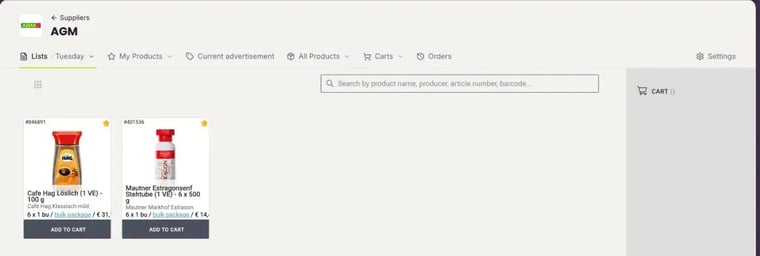
- To order, open the list via Lists and put the products in the cart with Add to cart.
To change the order of the products, drag a product to the desired position while holding down the mouse button. The order is saved.
Restrict the range that can be ordered
With lists with orderable products you define what your team may order from a supplier. For example, a range of 1,000 products becomes a clear selection of 50, and there are fewer incorrect orders.
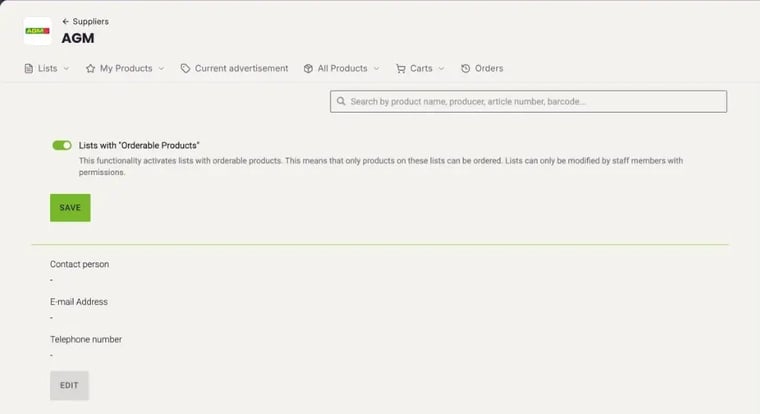
- Open the supplier and click Settings at the top right.
- Switch on Lists with "Orderable Products" and click Save.
- Create a new list as described above and also switch on List with orderable products.
- Use the star to add all products that may be ordered.
Important: As soon as the function is active, only products on a list with orderable products can be ordered from this supplier. If there is nothing on such a list yet, nobody without the permission Order all products can order from this supplier. In the Lists menu you recognise these lists by the shield icon.
Permissions
Every user can create private lists. For everything else you need the matching permission in your role:
- Create/edit public product lists: create and edit public lists.
- Create/edit lists with orderable products: define the range that can be ordered.
- Order all products: order all products despite a restricted range.
How to assign roles and permissions: How do I create roles for users?