![Nav Support Center.svg]](https://help.foodnotify.com/hubfs/Support%20Center/Design/Nav%20Support%20Center.svg)
In Catering you plan events from the first enquiry to the big day: meals and drinks, equipment, costs, orders and your team – all in one place.
Your events
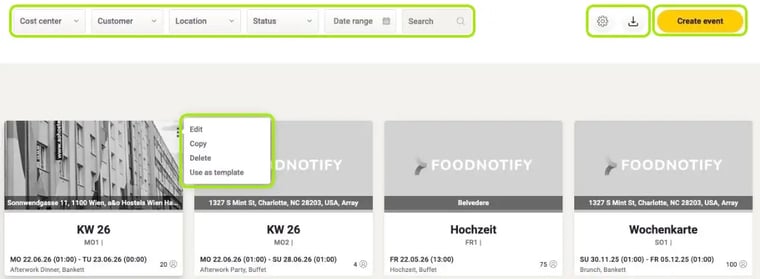
Click Catering in the sidebar. You see all your events as tiles. Each tile shows:
- photo and address of the location
- name of the event and its code – e.g. FR1 for the first event on a Friday
- start and end
- event and type, e.g. wedding, buffet
- number of guests
Filter and search
At the top you narrow down the list by Cost center, Customer, Location, Status and Date range. Use Search to find an event by its name. Active filters appear below the bar, where you can also remove them.
Event statuses
- In The Planning – you are discussing the details with your customer.
- Assigned – the customer has commissioned the event.
- In Progress – you are putting together meals, drinks, equipment and team.
- Ready – everything is prepared and the event can take place.
- Canceled – the event will not take place.
You change the status at the top right of the event. Good to know: you edit meals, courses and recipes while the event has the status In Progress.
Open, edit, copy, delete
Click a tile to open the event. When you hover over a tile, three dots appear at the top right:
- Edit – changes the main details such as name, date, location, customer and guests.
- Copy – creates a copy of the event. For large events this can take a few minutes.
- Delete – deletes the event after a confirmation. This cannot be undone.
- Use as template – starts a new event based on this one. You only change what is different.
Settings and download
The gear icon opens the catering settings for customers, events, templates, locations and your team. With the download icon you download a report on your events; the period can cover up to 14 days.