![Nav Support Center.svg]](https://help.foodnotify.com/hubfs/Support%20Center/Design/Nav%20Support%20Center.svg)
With mass ordering you order the same products for several cost centers at once, for example for a promotion in all your locations. FoodNotify then creates the individual orders with your suppliers.
Create a mass order
- In the sidebar, click Shop › Mass ordering and then Create Order.
- Enter a Name, for example "Weekly order week 11", and a Note if needed. Click Create.
- Next to Cost Center, click Add and select the cost centers.
- Click Add Product and choose the product and the package.
- Enter the quantity for each cost center. If a cost center should not get a product, enter 0. If fields stay empty, FoodNotify points this out.
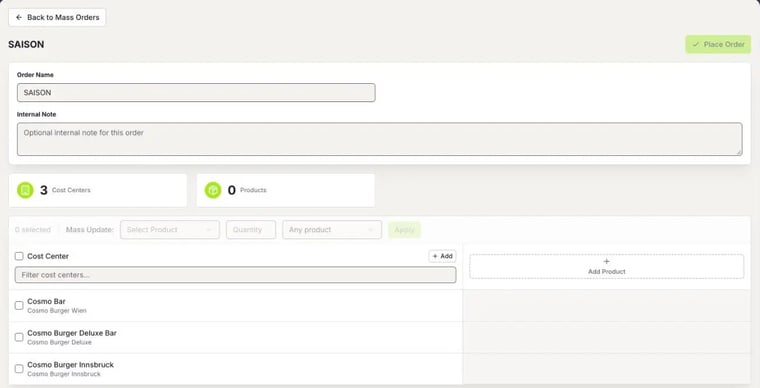
With Mass Update you set one quantity for several selected cost centers at once: choose the product, enter the quantity and click Apply. With the filter next to it you can, for example, show only rows with an empty quantity.
Place the order
Click Place Order and choose:
- Place Immediately: The orders go to your suppliers right away.
- Schedule Placement: You choose the date and time at which FoodNotify places the order. With Unschedule it becomes a draft again.
Status and errors
The overview shows the status of each mass order, for example draft, scheduled, ordered, partially ordered or failed. When you open an order, Show failed tells you what did not work. Typical reasons:
- The supplier has no delivery dates for this location.
- All of the supplier's order deadlines have passed. Try again in the next ordering window.
- The location is not set up for orders with this supplier.
- The product has no active offer or is not available.
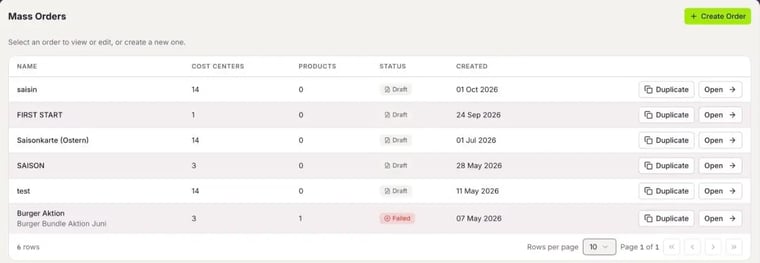
With Duplicate you create a copy, for example for next week.